API Keys
API keys allow you to authenticate with the TopTickets API for server-to-server integrations. This guide explains how to create, manage, and revoke API keys.
Overview
API keys provide:
- Scoped access - Grant specific permissions for different use cases
- Expiration - Set automatic expiration dates
- IP restrictions - Limit access to specific IP addresses
- Audit trail - Track usage with last used timestamps
API Key Security
The full API key is only shown once when created. Store it securely immediately - you cannot retrieve it again.
Creating an API Key
Info
Only a user with the Admin or Read-Only Admin role can create API keys.
-
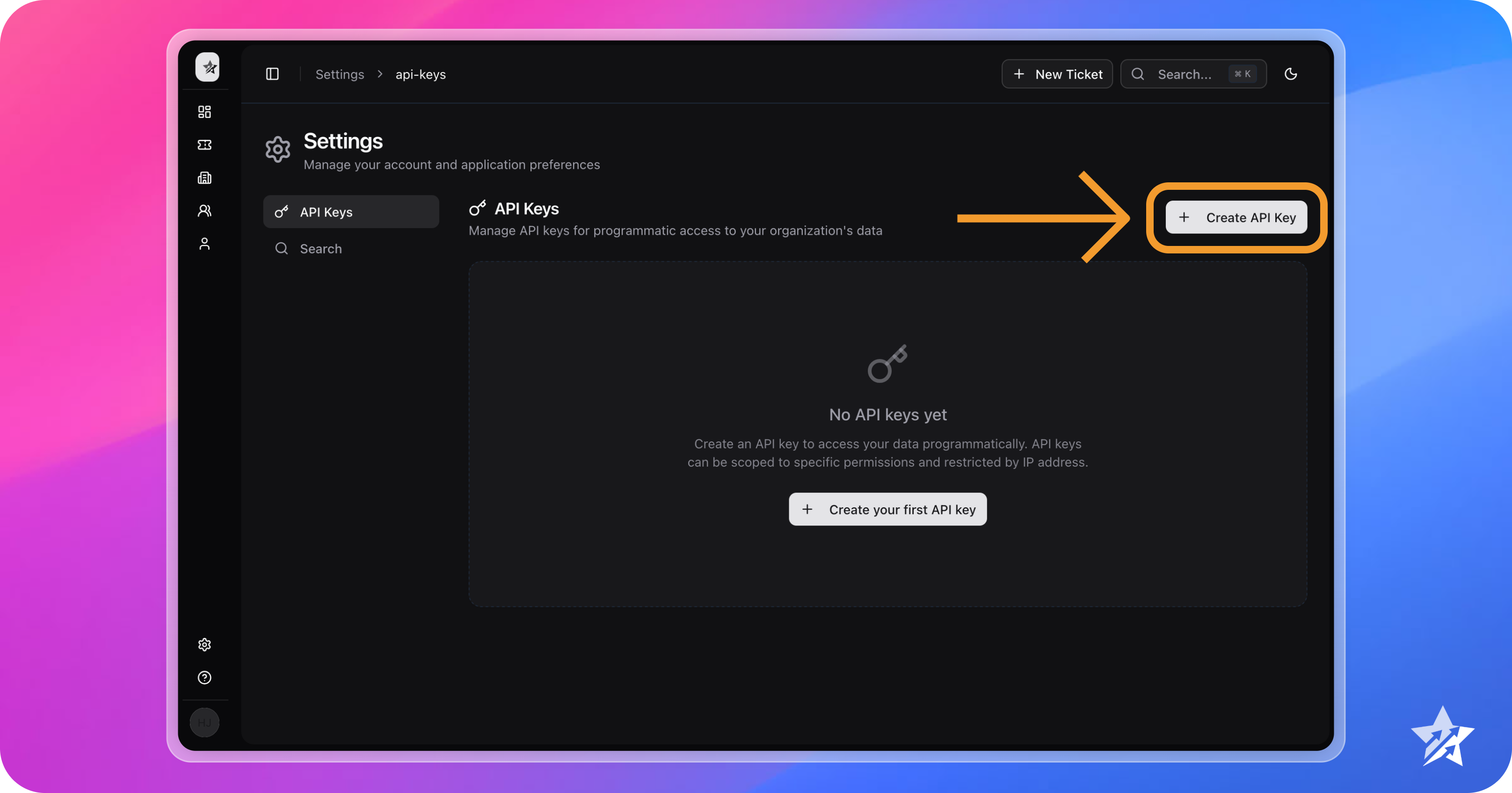
Navigate to Settings > API Keys, then click Create API Key
-
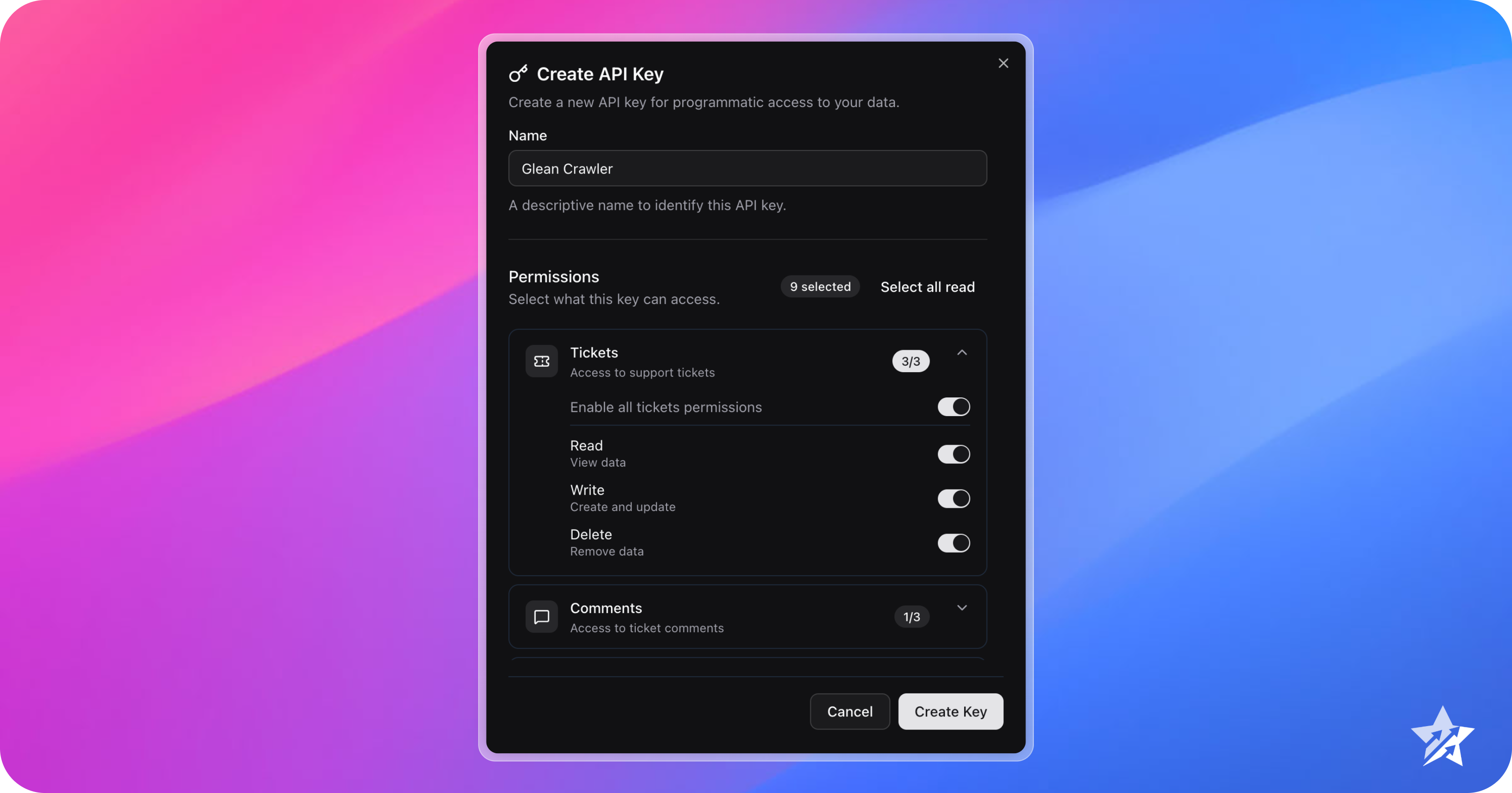
Provide a Name for the API key, then select the scopes required. When finished, click Create Key
Tip
Scopes dictate the content that can be accessed via the TopTickets API, as well as the actions that can be performed. For more information, see API Scopes
-
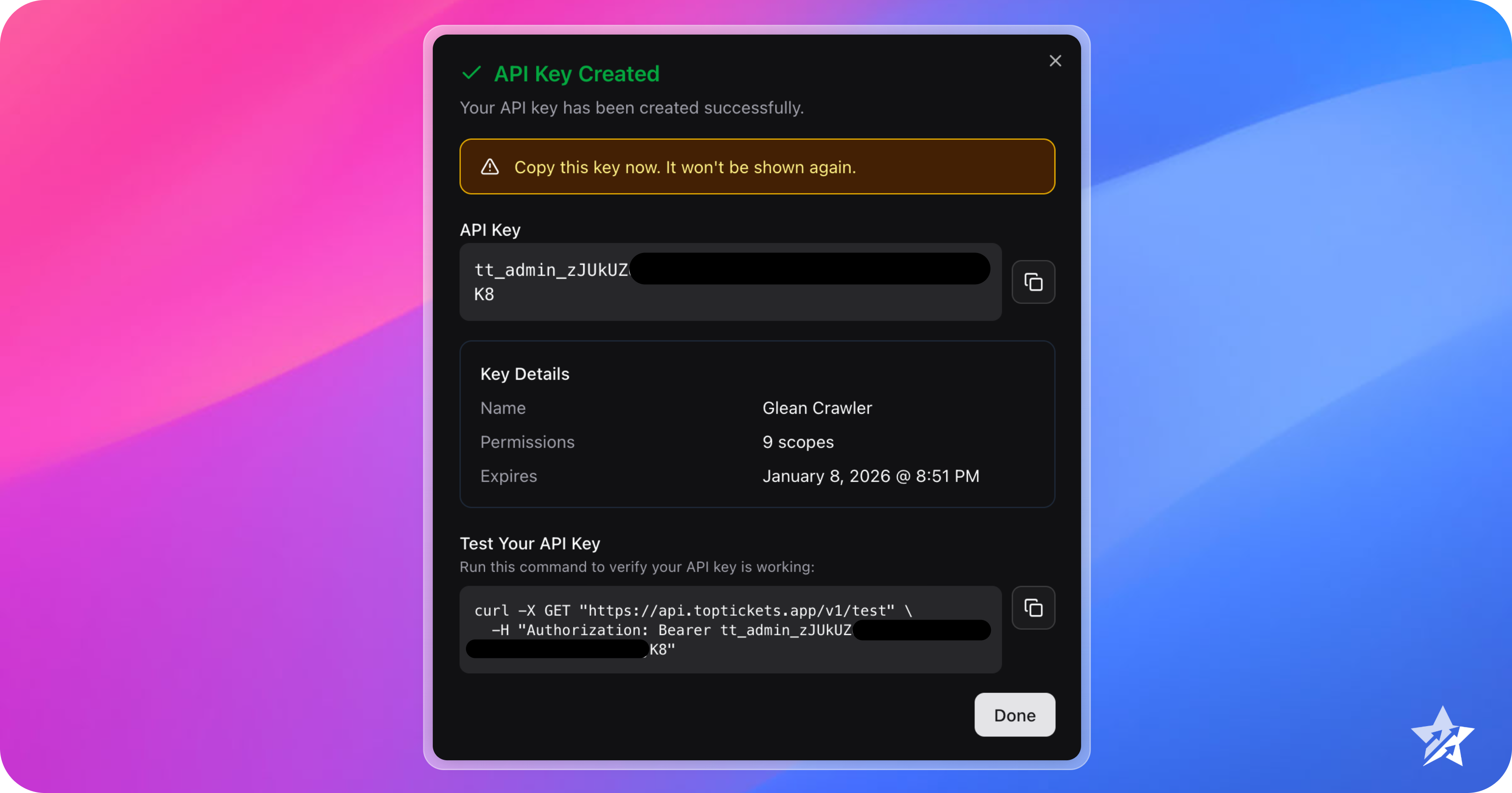
Copy the API key shown on the confirmation dialog and store it in a safe place. You are also provided with a
curlcommand that can be used to test your new API key.Save Your Key Now
The API Key field contains the full API key. This is the only time it will be shown. Copy and store it securely in your secrets manager or environment variables.
Limited Lifetime for Read-Only Admins
All API keys generated by a user with the Read-Only Admin role have a fixed lifetime of 72 hours. This cannot be changed.
-
(Optional) Test your API key using the provided
curlcommand (or use the examples below)Example response:
{
    "success": true,
    "message": "API key is valid and working correctly",
    "key_name": "Test API Key",
    "key_prefix": "tt_admin_P6jVGAam",
    "scopes": [
        "tickets:read",
        "comments:read",
        "users:read",
        "teams:read",
        "customers:read",
        "attachments:read",
        "dashboard:read"
    ],
    "expires_at": "2025-01-12T10:29:19.281088Z",
    "organization_id": "2ce9a473-3578-422f-82a8-afa17eabe88f",
    "authenticated_at": "2025-12-09T10:29:26.199562Z"
}
Revoking an API Key
To revoke an API key:
- Navigate to Settings > API Keys
- Find the API to be revoked in the table, click :ellipsis: to open the menu, and select Revoke.
Revocation is Immediate
Revoked keys are immediately rejected. Any integrations using this key will stop working.
Role-Based Limitations
Your user role affects what you can do with API keys:
| Action | Admin | Read-Only Admin |
|---|---|---|
| Create keys | Yes (all scopes) | Yes (read-only scopes only) |
| View own keys | Yes | Yes |
| View all org keys | Yes | Yes |
| Update keys | Yes | No |
| Revoke own keys | Yes | No |
| Revoke any key | Yes | No |
Read-Only Admin Limitations
- Scopes: Can only request read-only scopes (
*:read) - Expiration: Keys automatically expire after 72 hours
- No management: Cannot update or revoke keys after creation
IP Allowlisting
Bug
IP allowlisting is currently bugged and will not function as intended. It should not be used until further notice.
Restrict API key usage to specific IP addresses. Supported formats:
- Single IP:
203.0.113.50 - CIDR range:
198.51.100.0/24
Requests from IPs not in the allowlist receive a 403 Forbidden error.
Key Expiration
Set expiration to automatically disable keys after a designated period.
- Maximum expiration: 8760 hours (1 year)
- Read-Only Admin keys: Forced 72-hour expiration
- Expired keys return
401 Unauthorized
Best Practices
Use Descriptive Names
Name keys clearly to identify their purpose.
For example, Zendesk Sync - Production instead of just Zendesk.
Minimum Required Scopes
Request only what you need.
For example, to sync ticket data to another system, request only tickets:read and not tickets:write or tickets:delete.
Set Expiration for Temporary Access
Expiration time should be set inline with your organization's key rotation policy (see below).
Rotate Keys Regularly
- Create a new key before the old one expires
- Update your integrations with the new key
- Revoke the old key
Use IP Restrictions for Production
Bug
IP allowlisting is currently bugged and will not function as intended. It should not be used until further notice.
Troubleshooting
"Invalid scope" Error
The scope you requested doesn't exist. Check API Scopes for valid scopes.
"User cannot create keys with these scopes"
Your role doesn't permit these scopes. Read-Only Admins can only use *:read scopes.
Key Expired
Create a new key. Expired keys cannot be renewed.
IP Not Allowed
Request is coming from an IP not in the key's allowlist. Update the key's allowed_ips or use from an allowed IP.
Next Steps
- API Scopes Reference - Complete scope documentation
- User Roles Reference - Role capabilities
- Rate Limits - Understanding rate limiting